 Janitha Illankoon
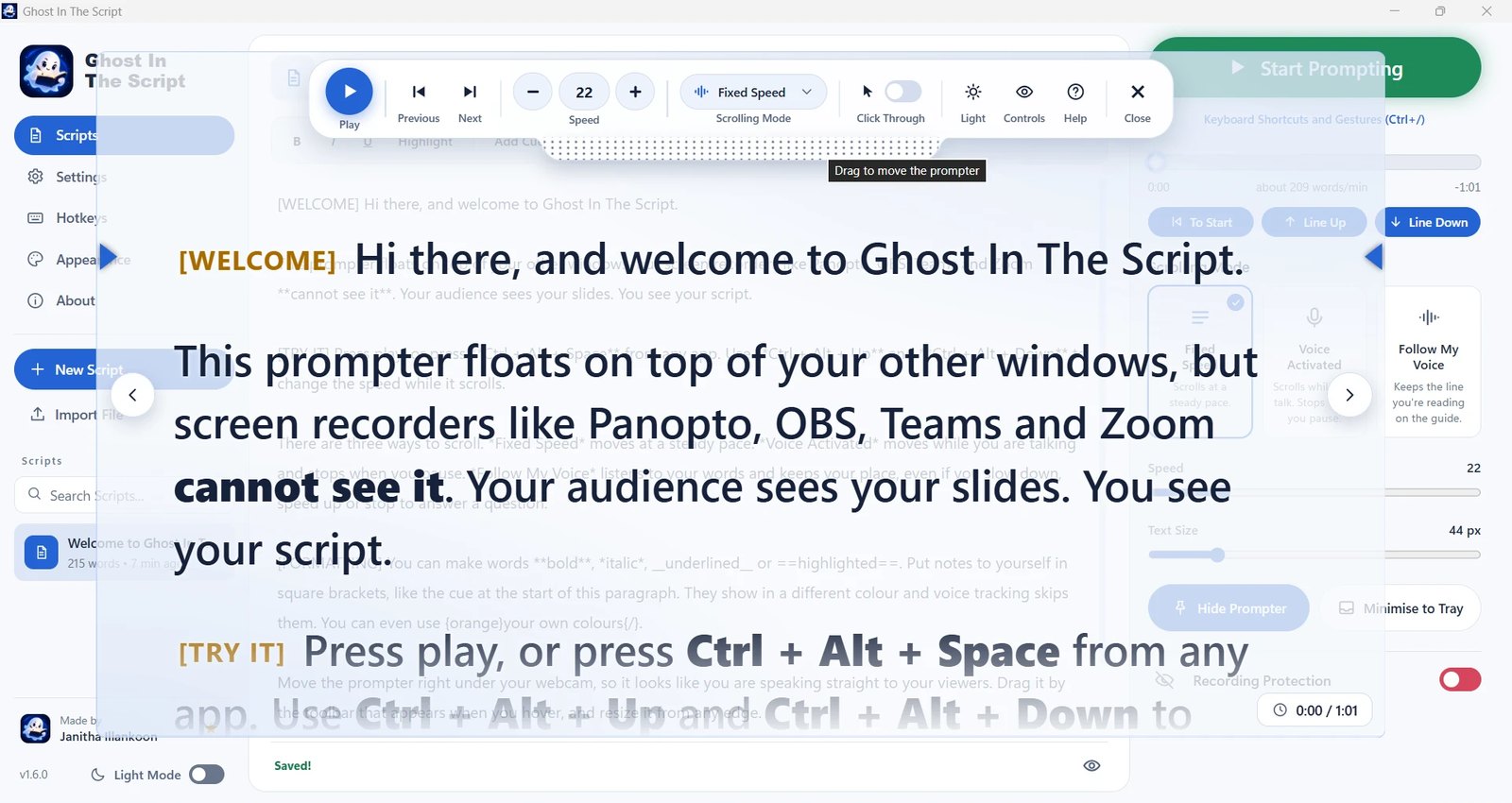
Recording a lecture means reading notes while looking at the camera. A normal notes window either ends up in the recording, or it sits somewhere that pulls your eyes away from the lens. Viewers notice both.
Ghost In The Script is my answer to that. It's a teleprompter for Windows that floats right under your webcam, on top of your slides, but doesn't show up in screen recordings. Panopto, OBS, Teams and Zoom see your slides. You see your script.
The problem with notes on camera
Lecture recording tools like Panopto capture your whole screen and your webcam at the same time. Anything you open on that screen becomes part of the video: your speaker notes, a Word document, a sticky note. So you either keep your notes on a second monitor and keep glancing away, or you learn the script by heart.
A real teleprompter solves this with a sheet of glass in front of the camera lens. I wanted the same thing for a laptop: the words as close to the webcam as possible, and invisible to the software doing the recording.
How it hides from recordings
Windows 10 version 2004 added a window setting called WDA_EXCLUDEFROMCAPTURE. A window with that flag is still drawn on your monitor, but every piece of software that captures the screen sees whatever is behind it instead. Ghost In The Script sets it on the prompter, so Panopto, OBS, Teams, Zoom, Snipping Tool and screen sharing all record your slides while you read your script.
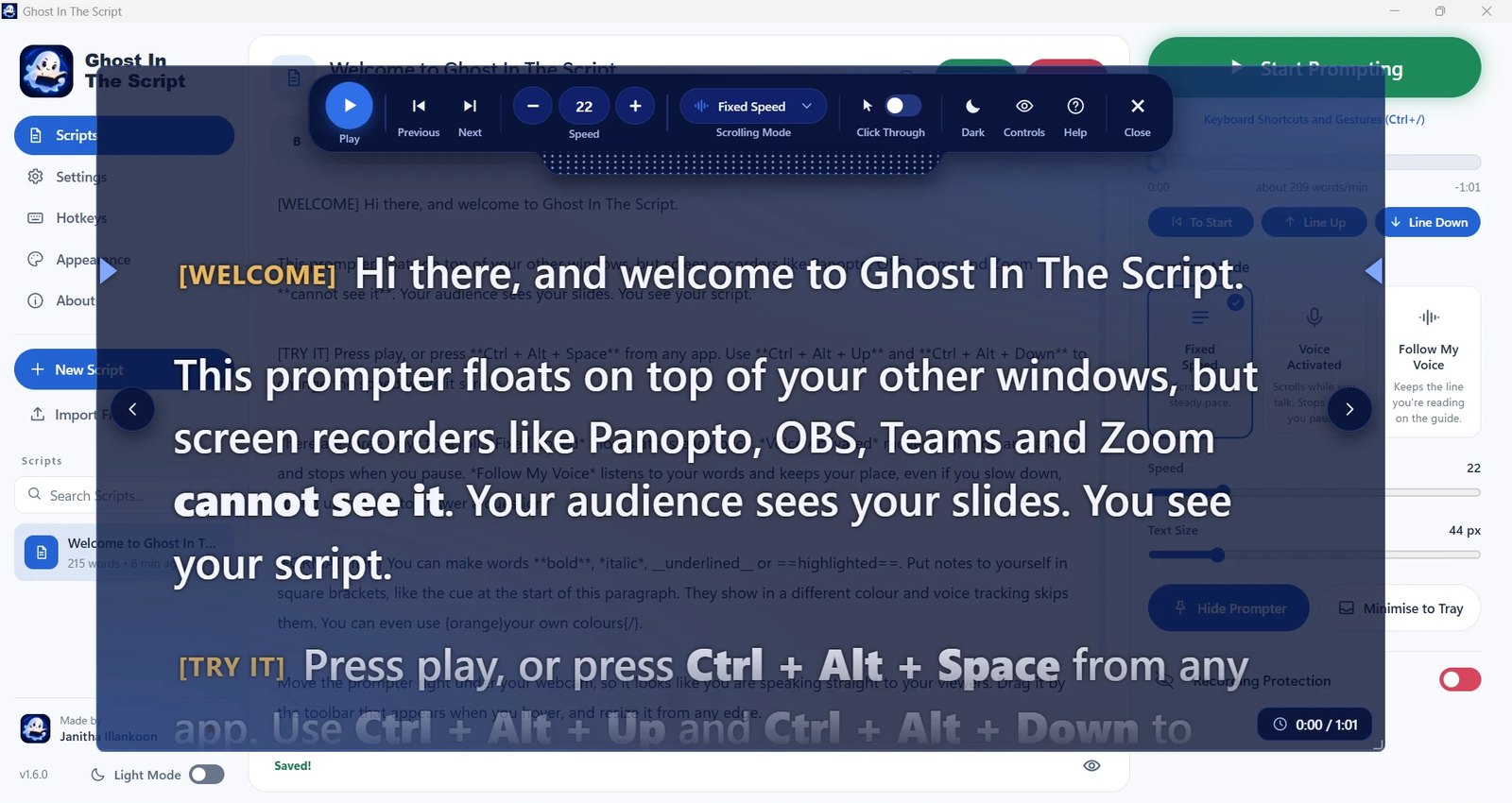
A few details make that hold up in a real recording:
- Recording Protection is a switch in the Present panel. It's green while the prompter is hidden and red when it isn't, and pressing Start Prompting with it off asks you first.
- No taskbar button. A full-screen recording also captures the taskbar, so by default the app lives in the tray near the clock. Ctrl+Alt+O brings the main window back.
- Screenshots on request. Windows can't hide a window from recordings without hiding it from screenshots too. Rather than pretend otherwise, there's an Allow Screenshots switch (Ctrl+Alt+S) that warns you it shows up in recordings while it's on.
I've tested it with Panopto, Zoom, Microsoft Teams and OBS Studio. There are step-by-step guides for Panopto and OBS.
Scrolling that follows your voice
A prompter that scrolls at a fixed speed is fine until you stop to answer a question. Ghost In The Script has three ways to scroll:
| Mode | What happens |
|---|---|
| Fixed Speed | Scrolls at a steady speed. Change it while it runs with the hotkeys or the slider. |
| Voice Activated | Scrolls while you talk and stops when you pause. |
| Follow My Voice | Listens to your words and keeps the line you're reading on the guide. It waits while you ad-lib, catches up if you skip a line, and jumps if you start reading somewhere else. |
Speech recognition runs on your PC with Vosk, an offline speech engine. Nothing you say leaves your computer. Follow My Voice matches the words it hears against your script with a Smith-Waterman alignment, the same family of algorithm used to line up DNA sequences, which is why a misheard word or a skipped sentence doesn't throw it off. The voice scrolling guide goes into detail.
Made to be read
Everything about the text can be changed: font, size, weight, line, paragraph, letter and word spacing, margins, alignment, colours, how see-through the background is, a reading guide (arrows, a line or a band) at the height you choose, dimming of the lines you've already read, and mirroring for teleprompter glass.
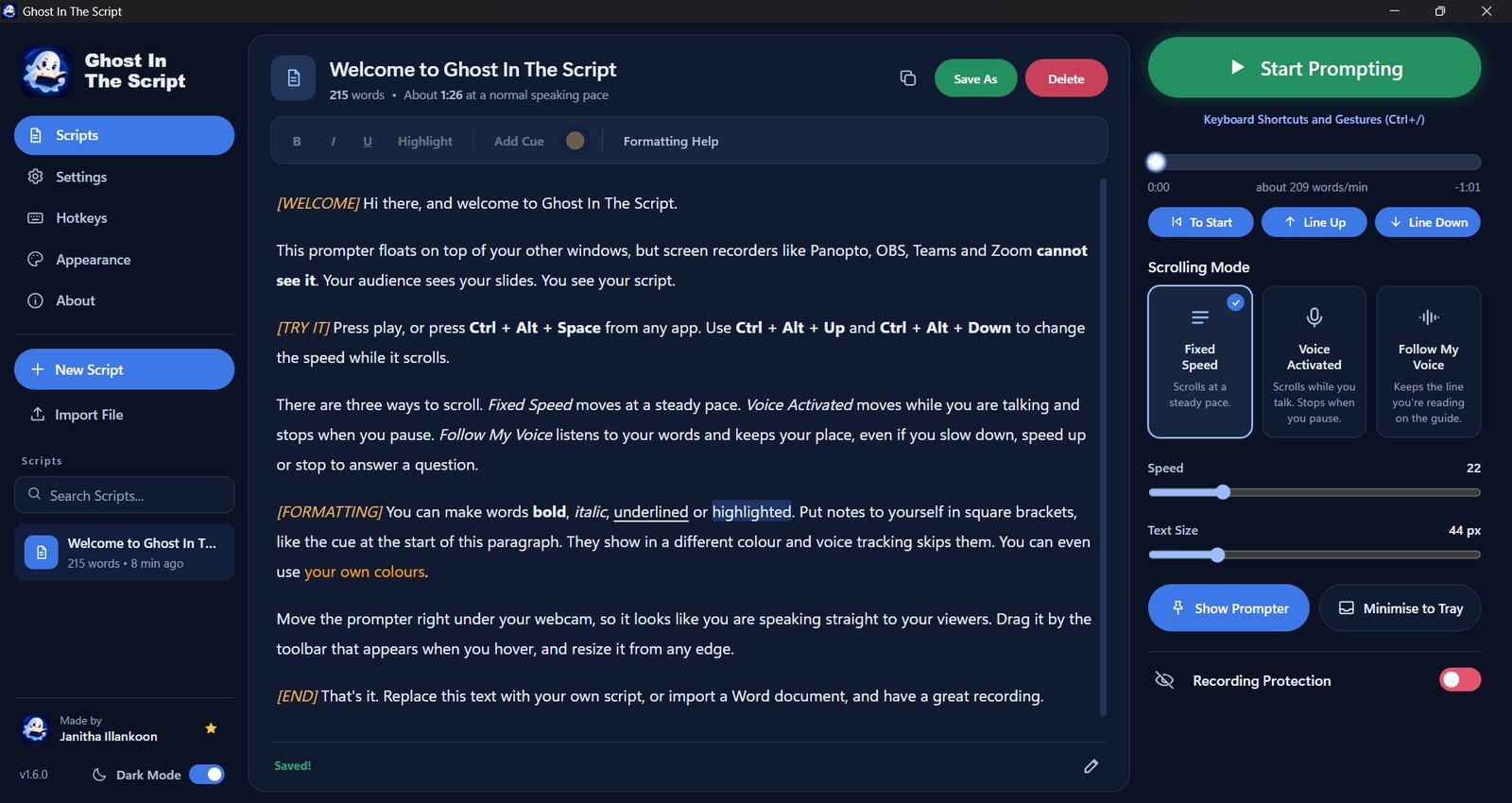
Scripts live in a searchable library with simple formatting: **bold**, *italic*, ==highlight==, colours, and [cue notes] that show in gold for you and are skipped by voice tracking. You can import .txt, .md, .docx and .rtf files, or drag them in.
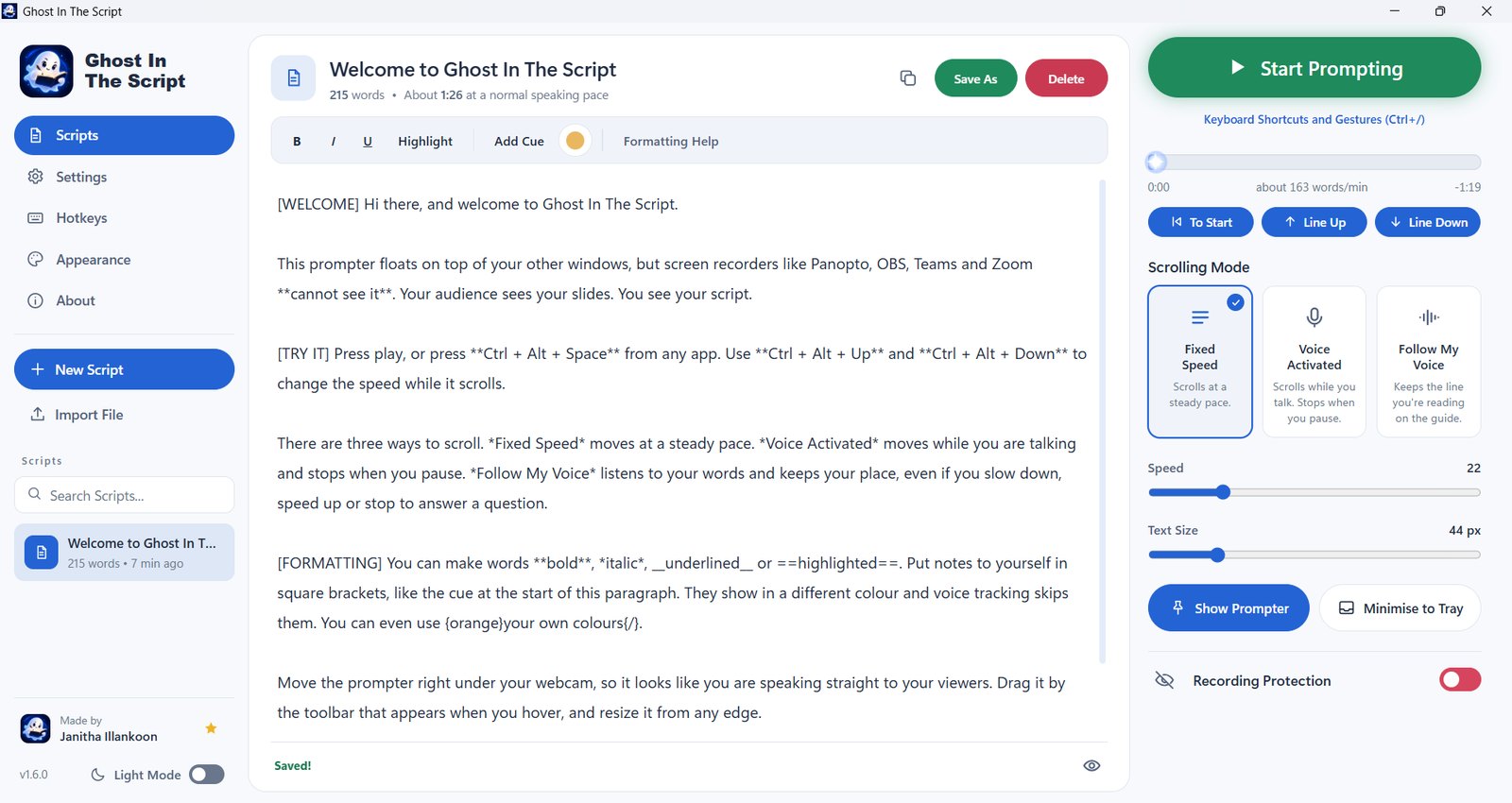
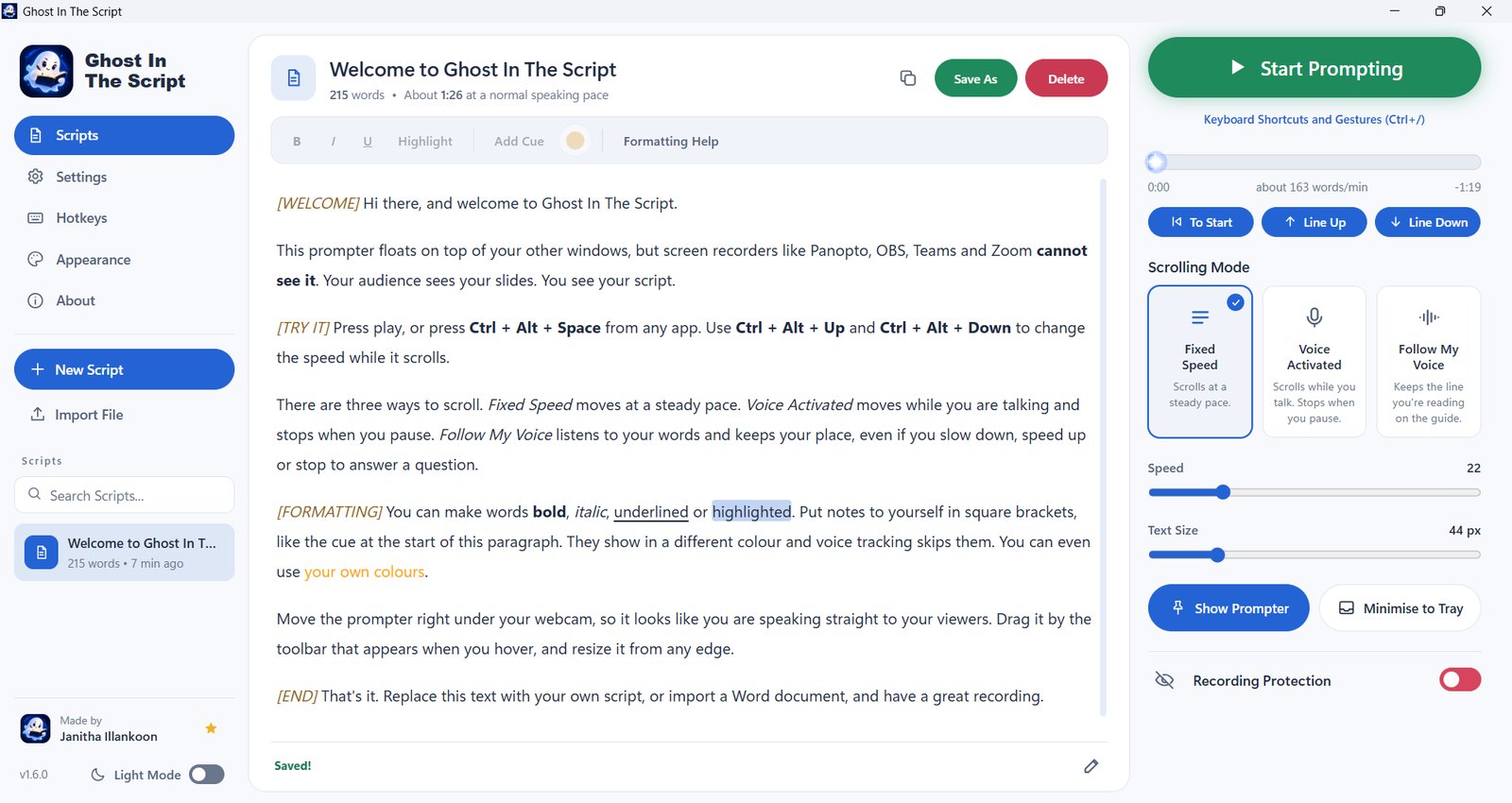
While you record, another app has focus, so everything works from global hotkeys: Ctrl+Alt+Space plays and pauses, Ctrl+Alt+Up and Ctrl+Alt+Down change the speed, and Ctrl+Alt+K turns click-through on, so clicks pass through the prompter to your slides underneath.
A remote in your pocket
Version 1.6.0 added Ghost Remote, an Android app for when you're standing away from the PC. Pair it by scanning a QR code, and it can play and pause, jump anywhere in the script, change the reading pace, and move or resize the prompter.
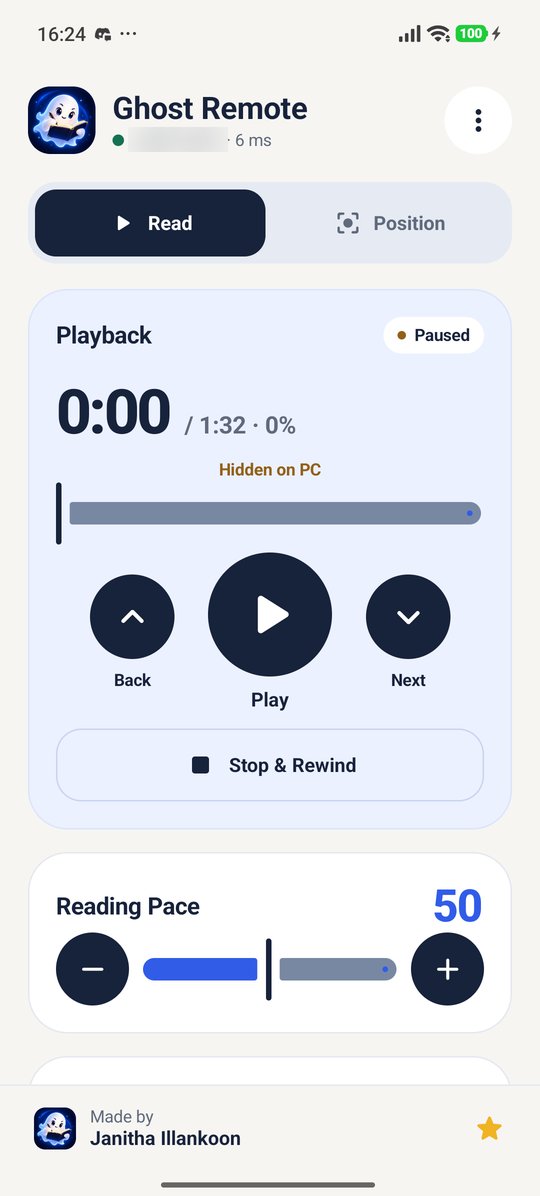
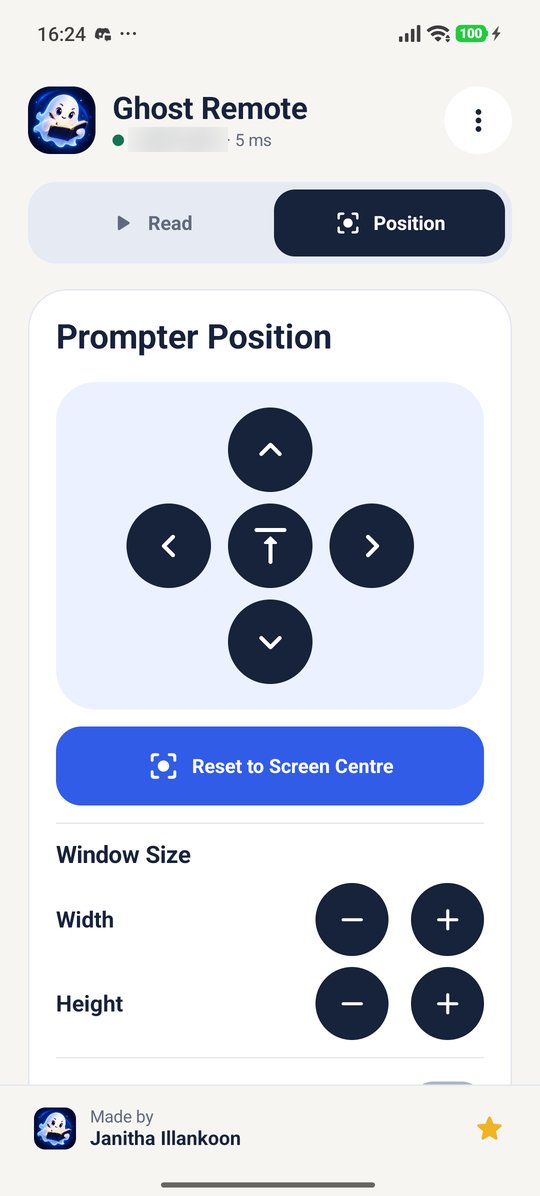
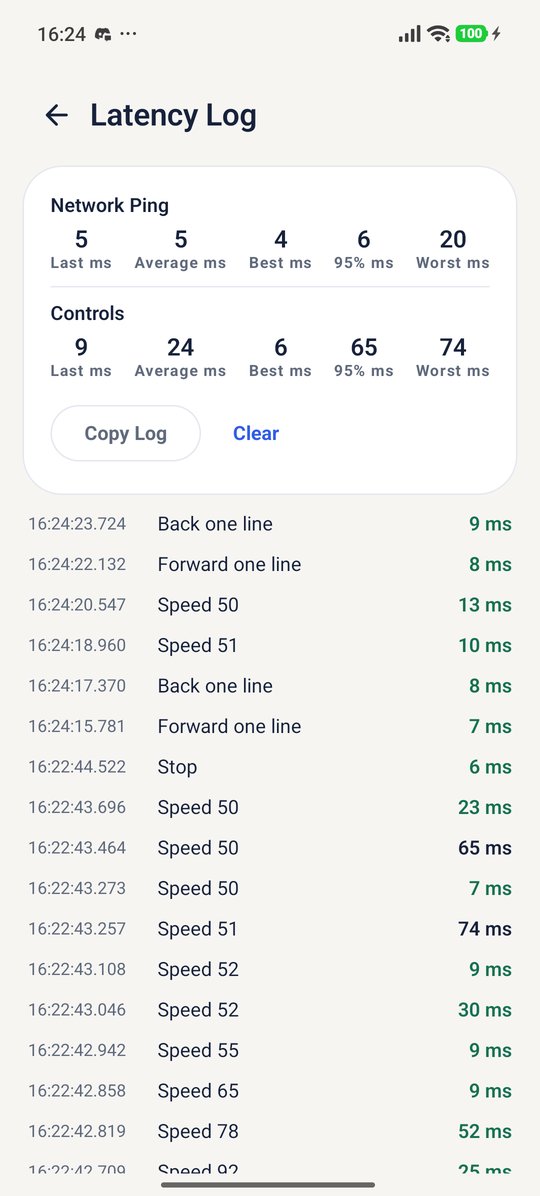
The phone can only drive the prompter. It can't open windows or reach your scripts, nothing connects without the pairing code, and it only talks over your local Wi-Fi. Setup is in the phone remote guide.
What it can't do
- It can't hide from a camera or phone pointed at your screen, or from a hardware capture card. The hiding works on software capture only.
- It's hidden from your own screenshots too, unless you turn on Allow Screenshots.
- The tray icon is part of the screen, so a full-screen recording can show it. Windows 11 usually tucks it into the hidden icons menu.
- It's Windows only. The remote is Android only.
How it was built
Ghost In The Script is a Tauri 2 app: two windows written in TypeScript, the main workspace and a transparent, always-on-top prompter, over a Rust core that sets the capture-exclusion flag, registers the global hotkeys, reads the microphone and runs Vosk. The phone remote is a native Android app written in Kotlin.
It's an AI-assisted project. Much of the code was written with Claude, by Anthropic; I directed the design, reviewed the code, fixed issues by hand and tested every release. The whole thing is open source on GitHub under the MIT license, and every release lists the SHA-256 hash of its installer.
Not the same as GhostPrompter
Ghost In The Script is often mixed up with GhostPrompter, a separate, paid teleprompter from another developer. They aren't related or affiliated. Ghost In The Script is free, MIT licensed and made by Janitha Illankoon, and its only official homes are this page and github.com/JanithaIllankoon/ghost-in-the-script.

Download Ghost-In-The-Script_1.6.0_x64-setup.exe from the latest release. It installs for your Windows user only and doesn't need admin rights. The installer isn't code-signed, so SmartScreen may warn you: choose More info, then Run anyway. What changed in each version is in the changelog.