 Janitha Illankoon
Panopto records your screen and your webcam together. That's great for lectures, but it means any notes you open on that screen end up in the video. Ghost In The Script puts your script on top of your slides, right under the webcam, and Windows leaves it out of everything Panopto captures.
What you need
- Windows 10 version 2004 or newer, or Windows 11
- Panopto, the way you normally record
- Ghost In The Script, free from GitHub
Set it up
- Install Ghost In The Script. Download
Ghost-In-The-Script_x.y.z_x64-setup.exefrom the latest release and run it. It installs for your Windows user only, without admin rights. If SmartScreen warns you, choose More info, then Run anyway. - Add your script. Type or paste it into the editor, or import a
.txt,.md,.docxor.rtffile. Put reminders to yourself in square brackets, like[click to next slide]: they show in gold and aren't read aloud by voice tracking. - Open the prompter. Press Show Prompter and drag it by the dotted handle under its toolbar until it sits just below your webcam. Resize it from any edge so only a few lines show; your eyes move less that way.
- Check Recording Protection. In the Present panel, the Recording Protection switch should be green. Green means the prompter and the main window are hidden from capture. If it's red, turn it on; pressing Start Prompting with it off asks you first anyway.
- Make a ten-second test recording. Start a short Panopto recording with the prompter showing, stop it, and play it back. You should see your slides and no prompter. Do this once on each new PC.
- Record for real. Start your Panopto recording, then press Ctrl+Alt+Space to start scrolling. The hotkeys work while Panopto has focus, so you never need to click the prompter.
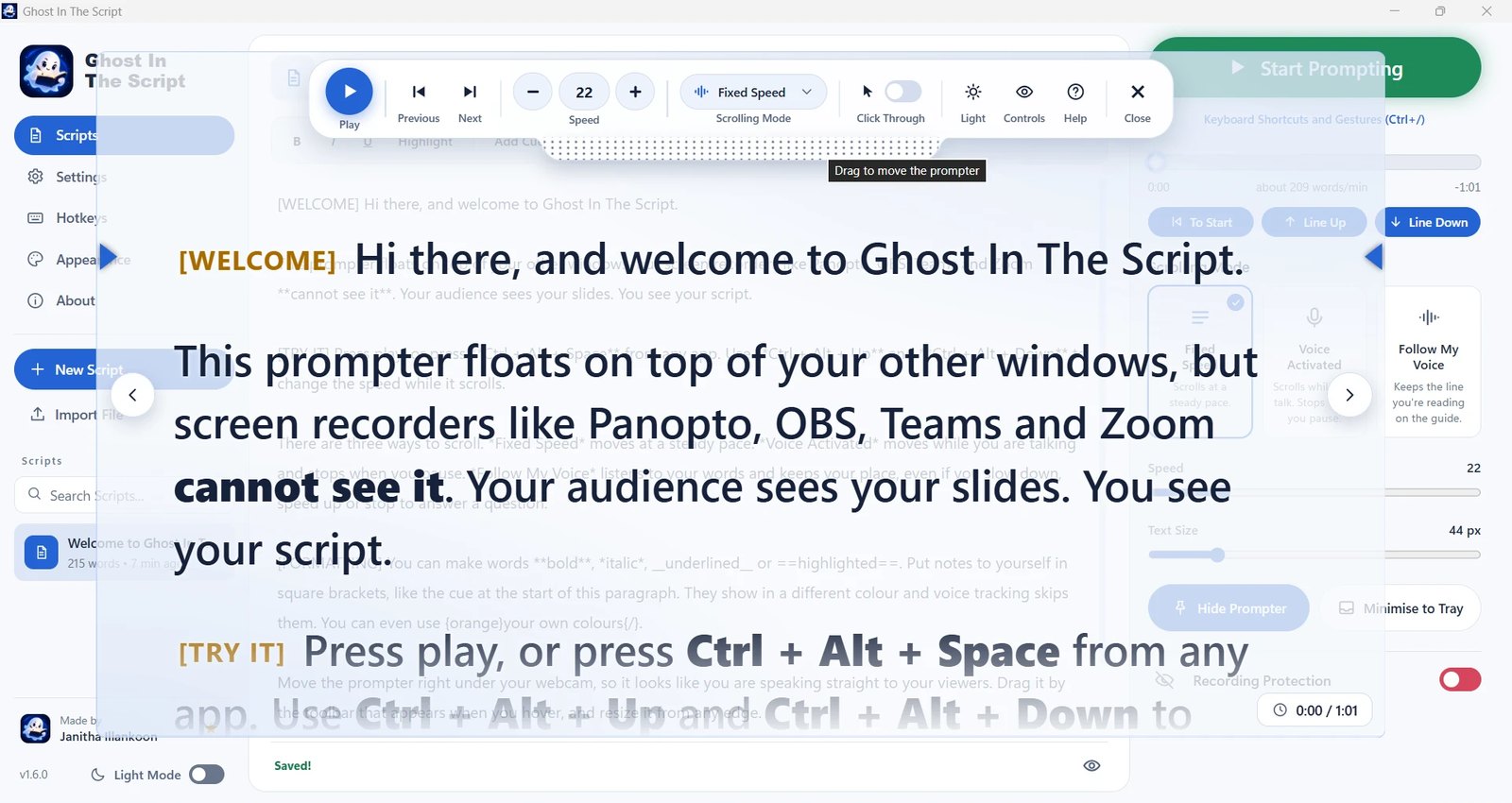
Turn on click-through with Ctrl+Alt+K. Clicks then pass through the prompter to the slides underneath, and a small badge on the prompter reminds you it's on. Press Ctrl+Alt+K again to turn it off.
Hotkeys you'll use while recording
| Action | Default keys |
|---|---|
| Play / pause | Ctrl+Alt+Space |
| Faster / slower | Ctrl+Alt+Up / Ctrl+Alt+Down |
| Back / forward one line | Ctrl+Alt+PageUp / Ctrl+Alt+PageDown |
| Back to the start | Ctrl+Alt+Home |
| Switch scroll mode | Ctrl+Alt+M |
| Click-through on / off | Ctrl+Alt+K |
| Show / hide the prompter | Ctrl+Alt+P |
| Show / hide the main window | Ctrl+Alt+O |
Change any of them under Settings > Hotkeys. If another app already uses one, the main window tells you and offers to change it.
Why Panopto can't see it
The prompter uses a Windows setting called WDA_EXCLUDEFROMCAPTURE. Windows still draws the window on your monitor, but hands screen-capture software whatever is behind it. Panopto, like every other software recorder, gets your slides.
The same setting would hide the window from your taskbar button, so Ghost In The Script keeps no taskbar button by default and lives in the tray near the clock instead. That way a full-screen Panopto recording doesn't show it there either.
Before you hit record
- Allow Screenshots is off. It's under Settings > Window, or Ctrl+Alt+S. While it's on, the prompter shows up in recordings as well as screenshots.
- The ghost tray icon is in the hidden icons menu (the ^ arrow), not next to the clock, if you record the full screen. You can set that under Settings > Personalization > Taskbar > Other system tray icons in Windows.
- If the prompter ends up off-screen, right-click the ghost in the tray and choose to move it to the top centre.
The hiding covers software capture. A camera or phone pointed at your screen, or a hardware capture card, will still see the prompter.