 Janitha Illankoon
OBS Studio's Display Capture records everything on your monitor, which normally includes your notes. With Ghost In The Script, you can keep a single Display Capture source and still read a script that's on that same screen. The prompter never reaches OBS, so it's not in the recording, the stream or the OBS preview.
Set it up
- Install Ghost In The Script. Download
Ghost-In-The-Script_x.y.z_x64-setup.exefrom the latest release and run it. It installs for your Windows user only, without admin rights. If SmartScreen warns you, choose More info, then Run anyway. - Add your script. Type or paste it into the editor, or import a
.txt,.md,.docxor.rtffile. Put reminders to yourself in square brackets, like[click to next slide]: they show in gold and aren't read aloud by voice tracking. - Open the prompter. Press Show Prompter and drag it by the dotted handle under its toolbar until it sits just below your webcam. Resize it from any edge so only a few lines show; your eyes move less that way.
- Check Recording Protection. The Recording Protection switch in the Present panel should be green.
- Look at the OBS preview. With a Display Capture source on the screen where the prompter sits, the OBS preview should show whatever is behind the prompter, not the prompter itself. What the preview shows is what gets recorded and streamed.
- Start recording or streaming in OBS, then press Ctrl+Alt+Space to start scrolling.
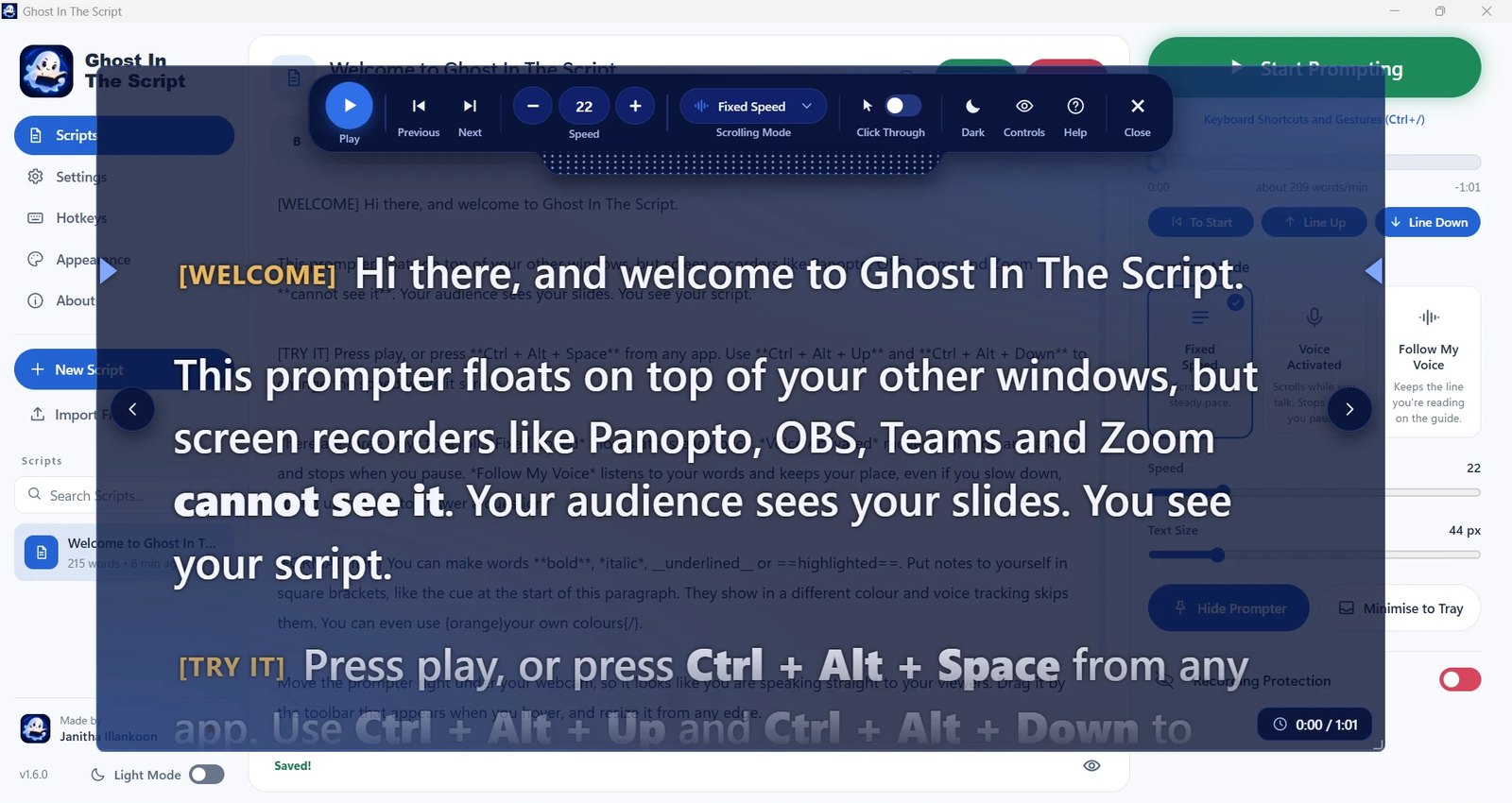
Ghost In The Script's hotkeys are global, so they work while OBS has focus. They all use Ctrl+Alt. If one clashes with a hotkey you set in OBS, the main window tells you and lets you pick another under Settings > Hotkeys.
Which OBS sources it hides from
Ghost In The Script uses the Windows WDA_EXCLUDEFROMCAPTURE setting, which applies to software screen capture as a whole rather than to one app. Display Capture and Window Capture both get whatever is behind the prompter. The same goes for Teams and Zoom screen sharing, Snipping Tool, and other recorders.
| Source | Sees the prompter? |
|---|---|
| OBS Display Capture | No |
| OBS Window Capture of another app | No |
| Webcam (Video Capture Device) | Only if the camera is pointed at your screen |
| Hardware capture card from this PC | Yes, it isn't software capture |
Tips for OBS
- Keep the prompter narrow and just below the webcam. The closer your eyes are to the lens, the less it looks like you're reading.
- For a talking-head video with no slides, the prompter can sit over anything; nothing on that part of the screen will be recorded unless you capture it.
- Try Voice Activated or Follow My Voice scrolling so you don't need to touch anything mid-take. See the voice scrolling guide.
- Leave Allow Screenshots off (Ctrl+Alt+S). While it's on, OBS sees the prompter too.
Hotkeys
| Action | Default keys |
|---|---|
| Play / pause | Ctrl+Alt+Space |
| Faster / slower | Ctrl+Alt+Up / Ctrl+Alt+Down |
| Back / forward one line | Ctrl+Alt+PageUp / Ctrl+Alt+PageDown |
| Back to the start | Ctrl+Alt+Home |
| Switch scroll mode | Ctrl+Alt+M |
| Click-through on / off | Ctrl+Alt+K |
| Show / hide the prompter | Ctrl+Alt+P |
| Show / hide the main window | Ctrl+Alt+O |
Change any of them under Settings > Hotkeys. If another app already uses one, the main window tells you and offers to change it.