 Janitha Illankoon
The hardest part of using a teleprompter alone is the speed. Too slow and you wait, too fast and you chase it, and either way you're not looking at the camera. Ghost In The Script can listen to you instead, and it does it without sending your voice anywhere.
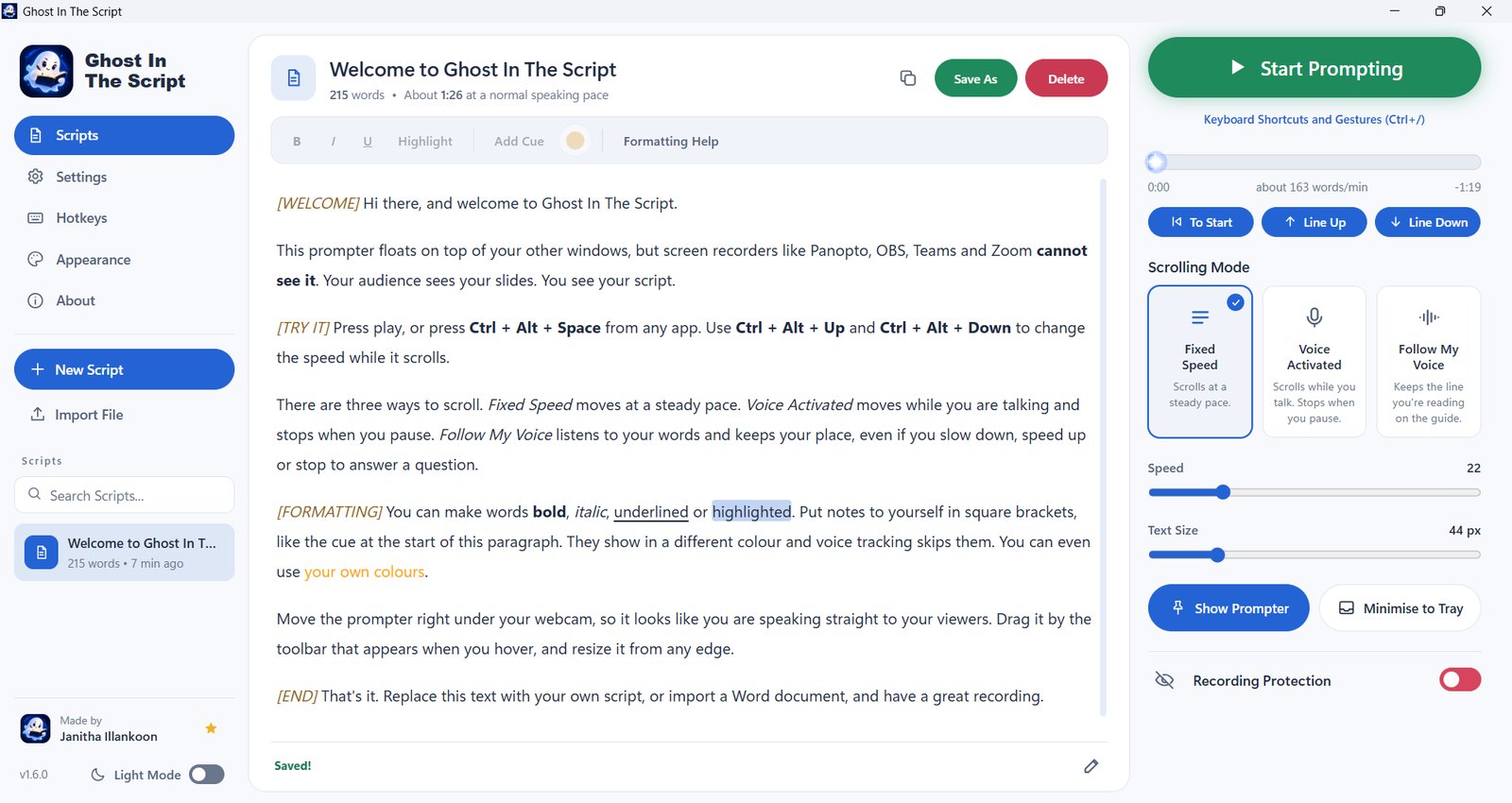
The three scrolling modes
Fixed Speed
The classic teleprompter. The script moves at a steady pace that you set with the Speed slider, or change while it runs with Ctrl+Alt+Up and Ctrl+Alt+Down. Good when you've rehearsed and know your pace.
Voice Activated
The script scrolls while you talk and stops when you pause. Stop to take a breath, answer a question or change slides, and it waits. It doesn't need to understand the words, so it works with any language.
Follow My Voice
The script follows the words you say. It keeps the line you're reading on the reading guide, waits while you ad-lib, catches up if you skip a line, and jumps if you start reading from somewhere else. This one needs a speech model for your language; English is built in.
Switch between them in the Present panel, from the prompter's toolbar, or with Ctrl+Alt+M from any app.
How Follow My Voice keeps its place
Speech recognition runs on your PC with Vosk, an offline speech engine. As you speak, Vosk turns your voice into words. Ghost In The Script then lines those words up against your script with a Smith-Waterman alignment, a matching method first used to compare DNA sequences.
That method is built for imperfect matches. A misheard word, an extra "um", or a sentence you skipped lowers the score of a match a little but doesn't break it, so the prompter keeps finding the right line. When the words you say don't match anything nearby, it holds still instead of guessing, which is what you want when you go off-script.
Notes in square brackets, like [pause here], are skipped by voice tracking, so you can leave yourself reminders without confusing it.
Get the best results
- Pick the right microphone. The Present panel shows which microphone it's listening on and whether it hears you. The microphone dot on the prompter lights up green while it hears you.
- Adjust sensitivity in a quiet room. If Voice Activated keeps scrolling during silence, or doesn't start when you speak, use Adjust Sensitivity in the Present panel.
- Read a paragraph as a test. Start prompting, read naturally, then skip a sentence on purpose and see it catch up.
- Use the reading guide. Set the guide (arrows, a line or a band) to the height you want your eyes at, usually near the top so the camera sees you looking up.
Other languages
The built-in speech model is English. For another language, or better accuracy, download a model from the Vosk model list, unzip it, and paste the folder path under Settings > Voice > Speech Model Folder. Voice Activated mode works with any language without a model change.
Nothing you say leaves your computer. The app doesn't connect to the internet; the speech engine and English model are downloaded once, when the app is built, and checked against their SHA-256 hashes.